
Figma Alternatives 2026: Honest Pros and Cons, Verdicts by Use Case, and a Figma-to-Webflow Workflow Section

When you search for Figma alternatives, most guides you find online list 10 tools and let you decide. While listicles are good for directories, for designers, they fall short. Especially when they need to make a switch before the next quarter.
This article is different. Each section includes pros, cons, a verdict, and the winner for each use case. Alternatives are organized based on which category Figma is failing for you. There’s also a section dedicated to the Figma-to-Webflow workflow that directly addresses how the two correspond.
Before you continue reading, there’s one overall verdict you came to hear: Figma is still the winner for most teams in 2026. But all specific exceptions are named below.
The overall verdict, since you came here for one: Figma still wins for most teams in 2026. The specific exceptions are named below.
When Does Switching from Figma Actually Make Sense
For most designers, Figma is still the number one tool. Figma offers:
- Browser-based real-time collaboration that works without setup
- The deepest plugin ecosystem in design tooling
- A developer handoff workflow that most engineering teams already understand.
- A learning curve that any designer coming from Sketch or Adobe XD can clear in a week
Why Figma Is Still the Default
All of the listed strengths make Figma the default for many teams. Still, due to the pricing increase, many teams started to reconsider Figma. While considering other design tools is healthy, many teams get back to Figma quickly. The reason for this is because different workflows didn’t fit the workflow they used to. So, while the tools changed, the underlying design processes stayed the same.
Pro tip: Before you start researching alternatives it’s worth determining what the core problem is. If the pricing is a main friction, there are solid options. But if you can’t cope with unclear briefs, a poor design system and slow reviewing cycles, jumping to a different tool won’t fix it.
When an Alternative Makes Sense
Alternatives make sense in the next 5 scenarios:
#1 The cost becomes too high.
As your team expands, so does the price tag for Figma. If you're using Figma with 10-15+ users and the pricing is increasing faster than your actual development work, then it is time to perform the hard math to determine how many users on your team would make sense for your specific business needs.
#2 You want control over your own source code (open-source).
If you need to host your software on your servers, if you have very stringent security requirements, or simply don't want to be locked into one company's product offering, you'll need to find an open-source option. This is NOT a minor detail; these are major blockers, and there is one alternative that fits perfectly in these categories.
#3 You want AI to do the heavy lifting.
If looking at a blank canvas has slowed your team down the most, you may want to explore AI-based tools. They can take a written project description and quickly produce a substantial amount of first-draft content.
#4 You just want to build websites/marketing pages.
If your group is primarily a marketing team developing websites versus software products, you can save an enormous amount of time by eliminating the developer/designer hand-off process. There are multiple solutions available today that allow designers to create and deploy their designs without needing developers to get involved.
#5 Your Team Uses Windows or Linux
While Figma works fine in a web browser, some teams absolutely need a dedicated desktop application. If your team does not use Macs, the operating systems you use will dictate your best tool options.
Hedrick is a Webflow-exclusive consultancy, so we have a specific bias toward design-to-publish workflows. We will name that bias explicitly each time it applies rather than burying it, based on our Webflow web design experience.
The Five-Point Framework We Use to Evaluate Every Alternative
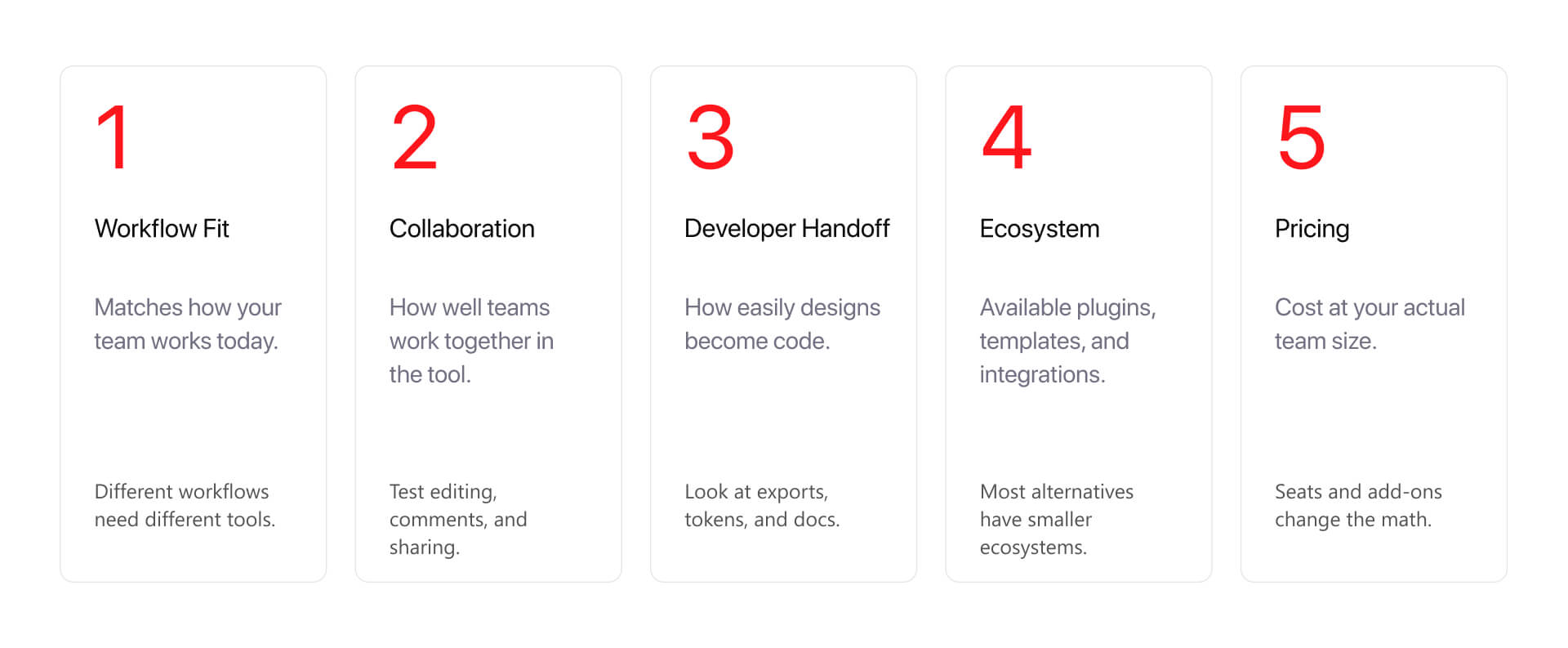
Every tool below gets scored on five dimensions, each out of 5, for a total out of 25.
Workflow Fit (1-5). How well the tool matches your actual design workflow, whether that is UI design, prototyping, design systems work, or early-stage ideation.
Collaboration Reality (1-5). Whether real-time multi-user editing works as well as Figma's in daily practice, not just in the demo.
Developer Handoff (1-5). How cleanly designs export, inspect, and transfer to the people building them.
Ecosystem Depth (1-5). Plugins, community resources, design system libraries, and third-party integrations. This is where alternatives most often fall short of Figma.
Pricing at Team Scale (1-5). Real cost at your actual team size, not the free or starter tier shown on the pricing page.
Traditional UI Design Tools That Compete with Figma Feature-for-Feature
What This Category Offers
Traditional UI design alternatives compete with Figma on the core workflow: vector design, component libraries, design systems, prototyping, developer handoff. These are the closest thing to a one-for-one Figma swap when the only reason you are switching is pricing, platform, or philosophy.
None of them match Figma's plugin ecosystem depth. All of them cover the daily design workflow competently. If you need a familiar tool that works like Figma without being Figma, start here.
Sketch - Pros, Cons, and the Verdict
Sketch has 10 years of UI design maturity behind it. The workflow will feel familiar to any designer who learned on Figma or moved from Adobe XD. The plugin ecosystem is the second-deepest in the category. For teams already on Mac, the native performance is noticeably smoother than a browser-based tool.
Pros:
- 10+ years of maturity in the UI design workflow
- Plugin ecosystem second only to Figma's
- Native Mac performance
- Familiar component and design system structure
- Working Webflow plugin support via Sketch-to-Webflow tooling
Cons:
- Mac-only. Windows and Linux teams cannot use it.
- Real-time multi-user editing exists but is less fluid than Figma's
- Pricing is comparable to Figma's, so the cost case is weaker than it looks
Score: 22/25
Workflow Fit 5/5
Collaboration Reality 4/5
Developer Handoff 5/5
Ecosystem Depth 4/5
Pricing at Team Scale 4/5
Verdict: Sketch is the best alternative for Mac-only teams who want a Figma-feel workflow without Figma's specific pricing structure. If your team is split across operating systems, stop here, this is not your tool.
Penpot - Pros, Cons, and the Verdict
Penpot is the only genuinely open-source, browser-based design tool in this category. Free at any team size. Self-hostable. Native design token support built in, which no other mainstream design tool includes by default. CSS-ready output that shortens the developer handoff conversation.
The open-source positioning is not a compromise position. For teams with real security requirements or vendor lock-in concerns, it is the right answer.
Pros:
- Genuinely open-source with a self-hosting option
- Free at any team size
- Native design token support (built in, not a plugin)
- CSS-ready output for developer handoff
- Browser-based, no platform restriction
Cons:
- Plugin ecosystem is still maturing, smaller community than Figma
- Fewer learning resources and templates available
- Real-time collaboration works but is less battle-tested at scale
Score: 21/25
Workflow Fit 5/5
Collaboration Reality 4/5
Developer Handoff 5/5
Ecosystem Depth 3/5
Pricing at Team Scale 4/5
Verdict: Penpot is the best alternative for teams that genuinely need open-source or self-hosting. The differentiator is real, not just a checkbox on a feature list. If open-source is a real requirement, this is the answer.
Lunacy - Pros, Cons, and the Verdict
Lunacy is free, runs on Windows, Linux, and Mac, and reads Sketch files natively. That combination covers a specific gap no other tool in this category addresses: cross-platform teams that need to open and edit Sketch files without requiring everyone to own a Mac.
Pros:
- Free
- Windows, Linux, and Mac support
- Native Sketch file compatibility
- Usable for cross-platform teams inheriting Sketch-based design systems
Cons:
- Lighter polish than Figma or Sketch
- Smaller plugin ecosystem
- Less suited to design systems work at scale
Score: 19/25
Workflow Fit 4/5
Collaboration Reality 3/5
Developer Handoff 4/5
Ecosystem Depth 3/5
Pricing at Team Scale 5/5
Verdict: Lunacy is the best alternative for Windows or Linux teams that need free Sketch-file compatibility. Outside that specific use case, it does not compete with Figma or Sketch on overall depth.
AI-Native Design Tools - Speed with Tradeoffs
What This Category Offers
AI-native design tools generate UI from text prompts or reference images. The pitch is compression: brief to credible draft in minutes instead of hours. The reality is that output is mockup-quality, not production-ready, and these tools fit early-stage ideation better than production design work.
They are not a Figma replacement for most design teams yet. They are a useful first step in a workflow that ends in Figma or a traditional tool. That distinction matters when you are evaluating whether they belong in your stack.
The category is also moving fast. Capability claims from six months ago may already be outdated.
Uizard - Pros, Cons, and the Verdict
Uizard is the most accessible entry point in the AI-native category. It generates multi-screen mockups from text prompts and allows drag-and-drop editing for non-designers. The target user is not a designer. It is a PM, founder, or marketing leader who needs to communicate ideas visually before a designer is involved.
Pros:
- Lowest learning curve in the AI-native category
- Generates multi-screen mockups from prompts
- Accessible to non-designers
- Useful for early-stage ideation and stakeholder communication
Cons:
- Output is mockup-quality, not production-ready
- Limited design system support
- Not built for developer handoff
Score: 18/25
Workflow Fit 3/5
Collaboration Reality 4/5
Developer Handoff 3/5
Ecosystem Depth 3/5
Pricing at Team Scale 5/5
Verdict: Uizard is the best AI-native tool for non-designer ideation. PMs, founders, and marketing leaders who need to communicate ideas visually before the design team is involved will get real value from it. Designers working on production UI will not.
AIDesigner - Pros, Cons, and the Verdict
AIDesigner targets a slightly further-along user than Uizard. It generates production-leaning UI from natural language prompts with framework-aware code output. The output is closer to something a developer can work with than Uizard's mockups, though it still requires design refinement before it is truly production-ready.
Pros:
- Generates production-leaning UI from natural language
- Framework-aware code output
- Infinite canvas for exploration
- Closer to developer-ready than other AI-native tools
Cons:
- Younger ecosystem than traditional tools
- AI generation has its own learning curve
- Output does not always translate cleanly to real design systems
Score: 18/25
Workflow Fit 4/5
Collaboration Reality 3/5
Developer Handoff 4/5
Ecosystem Depth 3/5
Pricing at Team Scale 4/5
Verdict: AIDesigner is the best AI-native tool for product teams who want more production-leaning output than Uizard provides. If you are using AI tools to accelerate a workflow that ends in Figma or code, AIDesigner belongs in the conversation.
Flowstep and the Wider AI-Native Category
Flowstep takes a different approach: natural language to UI with 1:1 code export in React, TypeScript, and Tailwind. It positions itself at the code-output end of the AI-native category rather than the mockup end. The code-generation crossover tools (v0, Lovable) belong in this conversation too, though they are technically code-generation tools first and design tools second.
Score: 18/25 (same caveats as Uizard and AIDesigner apply)
The right way to read the AI-native category: use the framework above rather than any specific tool recommendation, because what is accurate at time of writing may shift in three to six months. The underlying question is whether you need design-quality output (Uizard) or code-leaning output (Flowstep, AIDesigner, v0). Pick by output type, not by feature list.
Design-Build Hybrid Tools - Skip the Handoff
What This Category Offers
Design-build hybrid tools combine design and deployment in one platform. The value is eliminating the handoff step, the page lives where you designed it. The tradeoff is less flexibility than dedicated UI design tools for complex product interface work.
These tools fit marketing sites and landing pages better than product UI design at scale. The decision is not "is this as good as Figma?" but "is eliminating the handoff worth more to my team than dedicated design tool depth?"
Important: Hedrick is a Webflow-exclusive consultancy. When we discuss Webflow below, we have a direct conflict of interest. We are naming it clearly.
Framer - Pros, Cons, and the Verdict
Framer is the strongest design-to-publish tool for teams that want direct control over a marketing site without leaving the design environment. The animation and interaction library is the deepest in this category. The AI builder accelerates generation for early-stage builds. Publishing directly from the design tool means iteration cycles that would require a developer in a Figma-to-CMS workflow can happen in Framer without that dependency.
Pros:
- Native design-to-publish workflow, no handoff required
- Deep animation and interaction library
- AI builder for rapid generation
- Strong fit for marketing sites and prototypes that need to ship
Cons:
- Less flexible than Figma for complex product UI design
- Smaller ecosystem than Webflow's for production marketing-site builds
- Advanced animation has a learning curve
Score: 21/25
Workflow Fit 4/5
Collaboration Reality 4/5
Developer Handoff 4/5 (direct publish)
Ecosystem Depth 4/5
Pricing at Team Scale 5/5
Verdict: Framer is the best design-build hybrid for marketing sites where direct publishing matters more than dedicated design tool depth. If your team is small, moves fast, and needs to ship polished marketing pages without a developer in the loop, Framer is worth a serious look.
Webflow as a Design Tool - Pros, Cons, and the Verdict (We Are Biased Here)
Hedrick builds in Webflow exclusively. We have a clear preference. Read what follows with that in mind.
Webflow is not a Figma replacement for UI design of complex product interfaces. Designing multi-state SaaS interfaces in Webflow is awkward and slow. That is not what it is for.
For production-grade marketing sites, the calculus is different. The design IS the build. Responsive behavior is designed in the tool, not handed off for a developer to interpret. CMS structure is designed alongside the visual layer. The result is fewer cycles between design and build and a live site that looks like the design because there was no translation step between them.
Pros:
- Production-grade marketing site builds
- Deep CMS and responsive design tooling
- Native developer handoff is built in (the design is the build)
- Strong ecosystem of templates, libraries, and third-party integrations
Cons:
- Not a UI design tool for complex product interfaces
- Real learning curve, requires understanding CSS box model concepts
- More expensive at larger team sizes
Score: 20/25 Workflow Fit 3/5 for general UI design (5/5 for marketing site design specifically), Collaboration Reality 4/5, Developer Handoff 5/5, Ecosystem Depth 4/5, Pricing at Team Scale 3/5
Verdict: Webflow is the best design-build hybrid for production-grade marketing builds where the goal is shipping a live site, not designing one. It is not a Figma replacement for product UI design. We are biased here.
Lightweight Wireframing and Prototyping - When You Want to Stay Unpolished
What This Category Offers
Lightweight wireframing tools intentionally keep visual style rough so stakeholders focus on structure and flow rather than visual polish. Whimsical, Balsamiq, and Moqups are not Figma alternatives in the production design sense. They serve an earlier stage of the process.
The pattern most teams run: use a lightweight tool for wireframes and stakeholder alignment, then move to Figma or a traditional design tool for high-fidelity work. These tools belong in the stack alongside Figma, not instead of it.
Whimsical and Balsamiq - The Verdicts
Whimsical covers flow diagrams, sitemaps, and early-stage wireframes. The low overhead makes it fast to iterate and easy to share with stakeholders who are not designers. The intentionally limited visual style keeps conversations focused on structure.
Score: 19/25 Workflow Fit 4/5, Collaboration Reality 4/5, Developer Handoff 3/5, Ecosystem Depth 3/5, Pricing at Team Scale 5/5
Balsamiq focuses specifically on low-fidelity UI wireframes. The sketch-style aesthetic is intentional: stakeholders see structure, not a design they will want to revise on visual grounds before the layout is even decided. For teams that have learned the hard way that high-fidelity wireframes invite the wrong kind of feedback, Balsamiq solves the problem by design.
Score: 18/25 Workflow Fit 4/5, Collaboration Reality 3/5, Developer Handoff 3/5, Ecosystem Depth 3/5, Pricing at Team Scale 5/5
Verdict: Whimsical wins for flow diagrams and sitemaps. Balsamiq wins for UI wireframes that should stay intentionally rough. Neither replaces Figma. Both complement it for specific stages of the design process.
Verdicts by Use Case, the Figma-to-Webflow Workflow, and Mistakes to Avoid
The Verdict by Use Case
This is where we commit, offering seven use cases, and seven explicit winners.
Mac-only team that wants Figma without the specific pricing structure
Winner: Sketch.
Closest one-for-one Figma alternative, second-deepest plugin ecosystem, working Webflow handoff support.
Team with an open-source or self-hosting requirement
Winner: Penpot.
The only mainstream design tool that is genuinely open-source with self-hosting built in and native design token support. The requirement is real; so is the tool.
Marketing team that wants design plus direct publishing
Winner: Framer for direct publishing. Webflow for production-grade marketing builds where CMS structure and responsive behavior are part of the scope. (Hedrick bias named: we build in Webflow and have a preference.)
PM or founder who needs credible mockups without a designer
Winner: Uizard.
Lowest barrier to a communicable idea. Not a design tool in the professional sense; that is the point.
Designer who needs realistic prototypes with logic and states
Winner: UXPin.
The strongest tool for prototypes that need conditional flows, stateful interactions, and code-component integration. Steeper learning curve than Figma, worth it for this specific workflow.
Team that wants intentionally rough wireframes
Winner: Balsamiq for UI wireframes. Whimsical for flows and sitemaps.
Cross-platform team that needs a free tool
Winner: Lunacy.
Free, runs on Windows, Linux, and Mac, reads Sketch files natively.
The Figma-to-Webflow Workflow (Where Hedrick Lives)
Most articles on Figma alternatives treat design tools as if they exist in isolation. For teams running a Figma-to-Webflow workflow specifically, the design tool decision has a second layer: how does the design get into Webflow. The answer changes which alternative is actually viable.
Four workflow paths, and what each one means for tool selection:
Path 1: Solo designer-developer who designs and builds in one head
The handoff step does not exist because there is no handoff. The recommended tool is Webflow itself, or Framer, where the design environment and the production environment are the same thing. This is the path with the least translation loss.
Path 2: Separate design team and Webflow developer
Figma still wins in 2026. The Figma-to-Webflow plugin ecosystem (Relume, Figflow, Webflow's own Figma plugin) is unmatched by any alternative. A Webflow-aware design system inside Figma, structured to mirror Webflow's component logic, shortens build time significantly. Sketch is the closest alternative with working Webflow plugin support. Other traditional alternatives do not have the same depth of plugin coverage.
Path 3: Marketing team updating content on an existing site
The recommended tool is Webflow's design mode directly. If the site is already in Webflow and the team is updating content and layouts within an established system, adding a separate design tool creates a translation step that does not need to exist.
Path 4: AI-native experimentation paired with refinement
Use Uizard or AIDesigner for generation, then move to Figma or Webflow for refinement. The AI tool handles blank-canvas overhead. The traditional tool handles the production design system and the handoff.
The overall verdict for Figma-to-Webflow workflows in 2026: Figma still wins for most teams because the plugin ecosystem support for Webflow handoff is the strongest, comparing to Webflow vs Framer or other CMS options. If you are a Mac-only team and the pricing case is real, Sketch is the closest alternative with working Webflow plugin support. For solo designer-developers or small teams that want to skip the design layer entirely, Webflow or Framer directly is worth the learning curve.
FIGMA-TO-WEBFLOW WORKFLOW DECISION
If you build sites in Webflow, the Figma vs alternatives question has a second
layer: how does the design get into Webflow? Here is how we think about it at
Hedrick.
START HERE
What is the design-to-build relationship on your project?
├── Path 1: Single designer-developer who designs and builds in the same head
│ → Recommended tool: Webflow itself, or Framer for marketing sites
│ → Why: The handoff step is the part you skip. Design tools are overhead
│ you don't need when you're the only person in the workflow.
│ → Caveat: Skip this path if you need to communicate the design to a
│ client or stakeholder before building. Then you need a design
│ tool for review purposes, even as a solo practitioner.
├── Path 2: Design team and Webflow developer are separate people
│ → Recommended tool: Figma still, with a clear Webflow-aware design system
│ → Why: Figma's ecosystem of Figma-to-Webflow plugins (Relume, Figflow,
│ and others) is still the strongest. Sketch is a close second.
│ No other tool has comparable plugin support yet.
│ → Critical: The design system needs to mirror Webflow's component
│ capabilities. Designing patterns that Webflow cannot build
│ is the most common waste in Figma-to-Webflow workflows.
├── Path 3: Marketing team that wants to update content without going back to design
│ → Recommended tool: Webflow's design mode, working from a starter template
│ → Why: If the actual work is content and layout iteration on an existing
│ system, a separate design tool adds an extra round trip.
│ Designing inside Webflow eliminates it.
│ → Caveat: This only works if the design system is mature. Designing from
│ a blank Webflow canvas is not a good time.
└── Path 4: AI-native team experimenting with design generation
→ Recommended tool: Pair an AI-native tool (Uizard, AIDesigner) for
generation with Figma or Webflow for refinement
→ Why: AI tools generate concepts fast but produce mockup-quality output.
They are best as the first step in a workflow, not the whole one.
→ Caveat: The Webflow build still needs a real design system. AI-generated
output rarely lands directly in production.
OUR HEDRICK TAKE
For most Webflow projects, Figma is still the right design tool in 2026 because
the plugin ecosystem for Figma-to-Webflow is the strongest. If pricing or
philosophical reasons push you elsewhere, Sketch is the closest equivalent with
working Webflow plugin support. The other categories serve specific use cases
but are not yet drop-in replacements for Figma in a Figma-to-Webflow workflow.
The winner for Figma-to-Webflow: Figma still, for most teams. Sketch if Mac-only
and pricing matters more than ecosystem depth.
Three Common Selection Mistakes
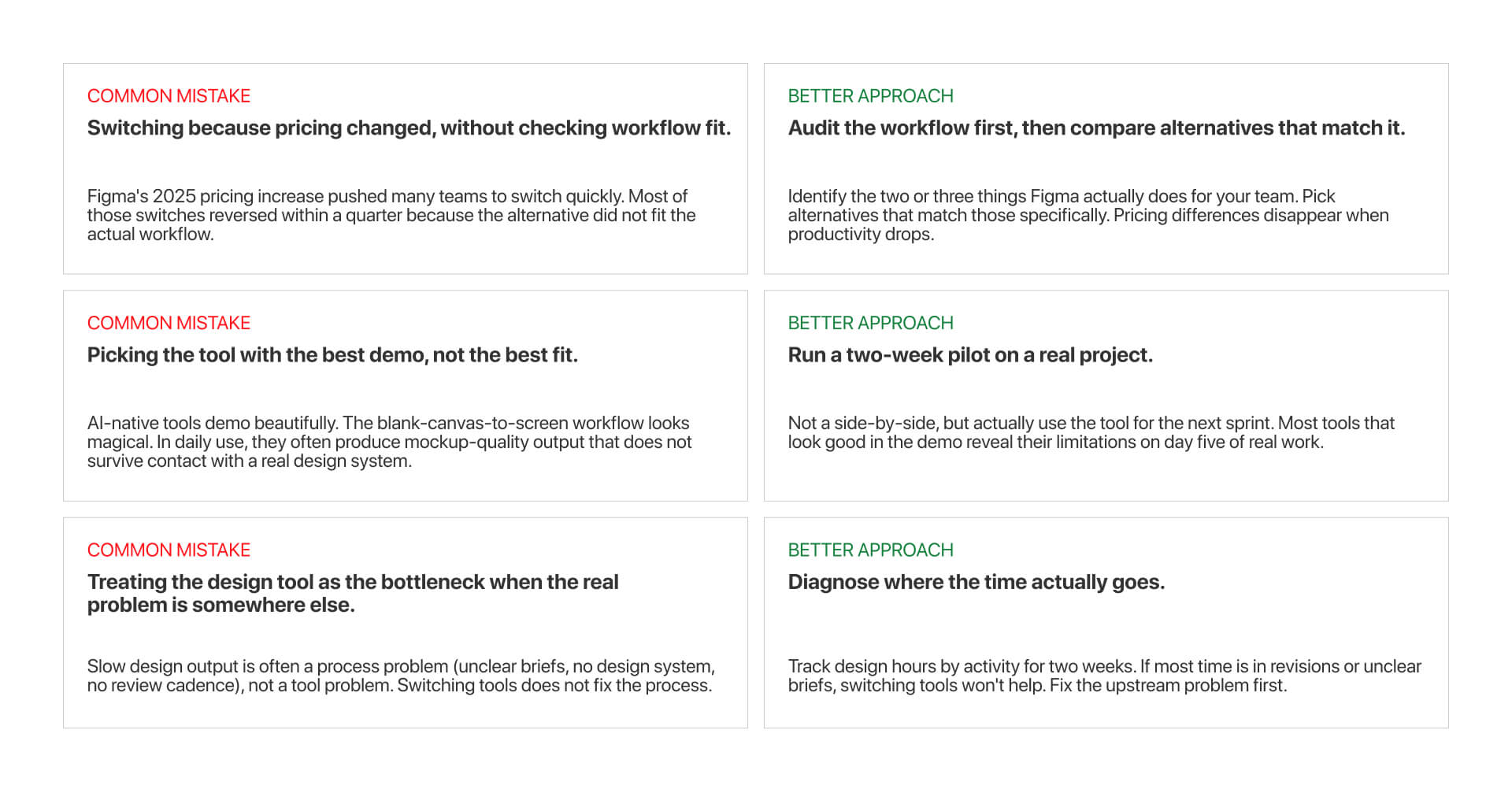
Mistake 1: Switching because pricing changed without checking workflow fit
The 2025 pricing increase pushed many teams to research alternatives quickly. Most of those quick switches reversed within a quarter. The alternative did not fit the actual workflow, and the switching cost (retraining, migrating files, rebuilding integrations) exceeded the pricing difference. Better approach: audit what your team actually does in Figma for two weeks before comparing alternatives. The right tool depends on the workflow, not the pricing page.
Mistake 2: Picking the tool with the best demo, not the best daily-use fit
AI-native tools demo beautifully. They generate a credible multi-screen UI in three minutes, which is genuinely impressive. That same output does not survive contact with a real design system or a developer handoff conversation. Better approach: two-week pilot on a real project before committing. Side-by-side comparisons reveal features. Daily use reveals friction.
Mistake 3: Treating the design tool as the bottleneck when the real problem is upstream
Switching tools does not fix unclear briefs, missing design systems, or slow review cycles. If most of your design hours are spent in revisions or waiting on approvals, the tool is not the problem. Better approach: track design hours by activity for two weeks before making a tool decision. If the time is in revision loops, fix the process. If the time is genuinely in tool friction, then research alternatives.
The winner overall: Figma still, for most teams. Switch when one of the specific use cases above describes your actual situation, not when you use Figma because everyone uses Figma.
Most teams research alternatives because of pricing or curiosity, switch quickly, then reverse when the alternative does not fit the workflow. The better approach is to audit the workflow first, pick the alternative that matches one specific use case, and run a two-week pilot on a real project before committing.
We have run the Figma-to-Webflow workflow long enough to have opinions about which alternatives actually work. If you want help thinking through the decision or running the build, talk to us.

Related articles
Read more
Read more
Read more
Hire Hedrick, Your Webflow Sidekick
Whether it's developing new websites and landing pages, building complex animations, integrating apps, or adding some custom code – if it's related to your Webflow site, we can help!
.webp)
The Webflow Toolkit
.webp)